Working with Photo Albums in Sandvox
Introduction
Sandvox provides tools to make it easy for you to create and maintain a photo album or gallery. A photo album is a collection, with a photo grid indexing its contents.
This article is designed to serve as a guide to getting the most out of this functionality.
Create the Album
First, we must create the photo album.
- Select a suitable page in the Site Navigator (such as the Home Page).
-
Click the "New" item in the toolbar and select "Photo Album."
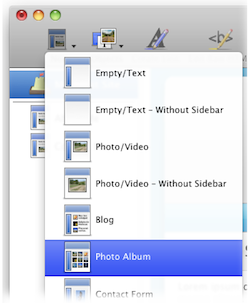
- Open the Page title and give the album a title.
- Change the text of the new Photo Album page to provide a description of the album. If you wish, you can leave this bit blank.
Congratulations, you now have a new photo album!
Adding Photos
Adding photos to the album is also very easy.
- Locate a photo for the album in the Media Browser, Finder, or another application.
-
Drag the image and drop in to the photo album index on the main page of the collection OR drag the image and drop it on the photo album in the Site Navigator:
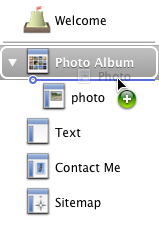
Any page could live in a photo album; it should just have a thumbnail (set from the Page Inspector) so that it can display itself in the index.
Having created a page with a photo in it you should also:
- Click the page title to give the photo an appropriate title.
- Use the Object Inspector to give the photo a description for those who cannot see the image in their browser.
- Click either above or below the photo to give the photo a suitable caption.
Importing an Album from iPhoto
Sandvox allows you to import and entire album from iPhoto while retaining the title of the album and the title, caption, and creation date of each photo.
To import an album from iPhoto, drag the album from the iPhoto sidebar
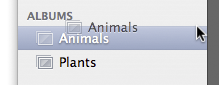
to the Sandvox Site Navigator.
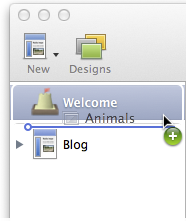
You can also drag individual photos from iPhoto to your existing photo albums, any page in your site, or as a separate page on its own. The title, caption, and creation date of each photo are also retained.
Arranging Photos
Of course, once you've got some photos into the Album, you'll probably want to arrange them. Sandvox makes this super-easy: Just drag the individual photo pages around in the Site Navigator.

If you like, you can set Sandvox to automatically arrange the photos for you.
To set the photo album to be automatically sorted:
- Select the album in the Site Navigator.
- Open the Page Inspector to the collection tab.
- Click the "Automatic Sorting" popup menu.
-
Make your choice with the "Sorting" popup:
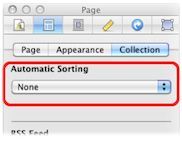
You can have your photos arranged alphabetically by their title, by the date they were created, or the date they were modified.
Browsing the Album
When viewing a Photo or Video page in an album, Sandvox conveniently provides navigational controls like this:

Click on the left and right arrows to move to the previous or next photo or video. Use the middle button to return to the album's index where you can see thumbnails of everything in the album.
Further Ideas
RSS Feeds
If you are using a photo album in such a manner that its content regularly changes (e.g. an album of your most recent photos or simply a random selection), then you may wish to add an RSS feed to it. By doing so, visitors can subscribe to the RSS feed and be easily notified when new photos are added.
To set a photo album to generate an RSS feed:
- Select the album in the Site Navigator.
- Open the Page Inspector to the collection tab.
-
Choose the type of RSS feed that you would like to use.
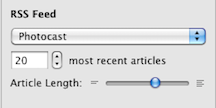
For more information on how to find the address of the RSS feed, please see the "RSS" article.
Comments
You could add the ability for visitors to leave comments about a photo.
To enable comments for a photo album:
- As described in the "Comments" article, enable comments for the site.
- Select the first existing Photo page in the photo album by clicking it in the Site Navigator.
- Open the Page Inspector to the Appearance tab.
- Check the box labeled "Comments."
- Repeat steps 2-4 for each of the Photos in the album.
- Select the photo album in the Site Navigator.
- Open the Page Inspector to the Appearance tab.
- Check the box labeled "Comments."
Keywords: photo, photos, album, albums, gallery, galleries, slide, slides, slideshow, slideshow, grid, arrange, photocast, thumbnail, thumbnails, movie, movies, navigation, navigate, navigating, iPhoto, caption
Cat image courtesy of stock.xchng
