Support and Feedback
Getting Support
The Karelia Community Forum is a web-based forum, where users are encouraged to submit problems, questions, and suggestions. In this web-based community, Sandvox users help other Sandvox users in a timely manner. Karelia staff monitor the forum to file feature requests appropriately, provide help, and track problems. To visit the Karelia Community Forum when you're working in the program, go to the Help menu and select "Visit Community Forum."
Providing Feedback Directly to Karelia
If you need to contact Karelia directly for support, our preferred method is to use Sandvox's built-in Feedback Reporter:
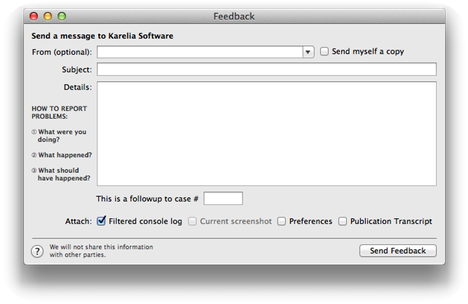
- From
- The email address at which Karelia may contact you regarding the report. This field is optional. (You may empty this field to submit an anonymous comment, but we cannot reply if you do.)
- Send myself a copy
- If checked, you will be sent a copy of the report exactly as it was submitted to Karelia.
- Subject
- A quick summary of the report.
- Details
- A detailed description of the bug or feature. Please note the information we request when reporting a bug: what you were doing, what happened, and what should have happened?
- Followup Case #
- If you are following up on an existing case you have already opened with our support team, enter it case number here. Doing so will automatically associate your message with our previous correspondence, which makes it easier for us to help you!
- Attach
-
You can attach specific kinds of files to your message by checking the options below. (You can't attach files other than the kinds listed below to this message; if it's necessary to send some other kind of file, you would have to do that in a followup message.)
- Filtered console log includes any error and warning messages generated by the application; this is quite useful to attach when you are having problems. Not available in Mac App Store edition: Use these instructions if you wish to send in a console log if this option is disabled.
- When screenshot is checked, Sandvox automatically takes a screenshot of whatever is visible in the Sandvox windows at the moment and attaches that screenshot to your message. This is most useful when your message describes a visual problem or something else that is showing on the windows when you are filling out this form. If you wish to send a screenshot you took yourself and that is not currently visible in the Sandvox windows, you will have to attach that in a followup message.
- Preferences includes the current settings for the application.
To contact Karelia for support or feedback:
- Choose "Send Feedback…" from the Sandvox menu.
- Fill in the fields of the feedback form as described above.
- Click the "Send Feedback" button.
It is also possible to use our contact page.
If you are working without an Internet connection, or if our servers are unreachable to submit your feedback, you will be given the option to save your report (as an RTFD file) and email it to us later.
Alternatively, you can use our online support to contact Karelia.
If you are working without an Internet connection, or you encounter other difficulties sending your feedback, your message will be saved and automatically sent the next time Sandvox is launched and there is an Internet connection available.
Case Numbers
When you first submit a feedback report it is assigned a unique case number. This number allows us to better track reports during any correspondence. When following up a bug or a feature request with us, please include the case number.
Once you have sent a report you receive an automatic response email from Karelia confirming receipt of the feedback. Your case number can be found in the message subject.
Note that if you do not provide your email address, we cannot send you a case number or confirmation.
Attachments
Sometimes as part of your feedback or support request, you may need to send Karelia a Sandvox document file to demonstrate the case. See these instructions to do so.
Screenshots
We may request that you send us an additional screenshot to aid in identifying the cause of an issue. For directions on taking a screenshot, please follow the instructions in this Apple support article. Once you have taken the screenshot, attach it to your e-mail as detailed above.
Sandvox Problem Reporter
Sandvox also features a problem reporter which will automatically report any error messages or unexpected termination of Sandvox (when you next relaunch the application). For more information, please see "What to do if Sandvox encounters a problem."
Keywords: send, report, sending, reporting, bug, bugs, feedback, feed, back, feed-back, make, feature, features, request, requests, dan, daniel, wood, terrence, talbot, case, cases, number, no, #, no., support, help, trouble, issue, issues, problem, problems, response, contact, contacting, support, address, addresses, e-mail, email, mail, e-mailing, emailing, mailing, mailto, help, helping, sandvox
