Preferences
Like most Mac applications, Sandvox has a Preferences Window which you open by choosing "Preferences…" from the Sandvox menu.
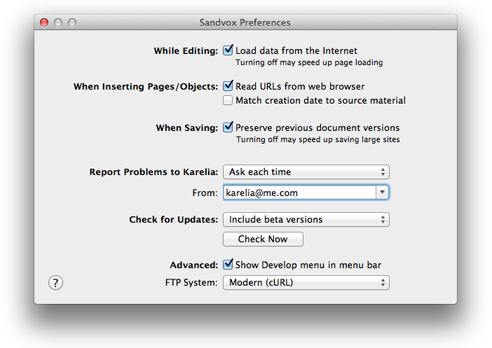
Application Preferences
While Editing
Load data from the Internet
Whether to download content from the Internet while editing a site. See the "Load Data from the Internet" article for more information.
When Inserting Pages/Objects
Read URLs from web browser
When you create an item that uses an external web address (a link or a YouTube object, for example), this option will automatically use the address of the current web page in your default browser. This feature is supported for Safari, Opera, Camino, Firefox, Chrome, and OmniWeb.
Match creation date to source material
You can create a new page by dragging media into the Site Navigator. For example, dragging an image to the Site Navigator results in a photo page.
With this option checked, the creation date of the new page is set from the item dragged (if it has one), rather than the current date.
When Saving
Autosave a Backup Copy Every (OS X 10.6 only)
You can set the slider to save in intervals of 30 seconds to 5 minutes. Users who have larger sites (more than several hundred pages) may wish to have the autosave interval less frequent.
Preserve Previous Document Versions (OS X 10.7 and up)
Sandvox uses automatic saving technique when using OS X 10.7 and up. Normally you will want multiple versions stored so that you can go back to previous versions in case you make a mistake. If you have a particularly large document, you may want to turn this feature off if it slows you down too much.
Report Problems to Karelia
Sandvox can report problems to Karelia in order to help improve the program in the future. You can set this to function one of the following:
- Ask each time
- Ask you whether to send a report each time a problem is encountered.
- Automatically
- Send problem reports automatically without asking. This is recommended.
- Never
- You will not be asked to report problems to Karelia. Not recommended.
You can use the From field to specify the default email address attached to problem reports. This is helpful should Karelia need to contact you about your report.
Check for Updates (Karelia edition only, not on Mac App Store edition)
Sandvox can check for new versions automatically or manually. Using the popup menu, you can choose among the following:
- Manually
- Checks only when manually using the Check for Updates menu item or the Check Now button in the Preferences window. Not recommended.
- Release versions only
- Automatically notifies you of any newly released versions of the application.
- Include beta versions
- Automatically notifies you of new releases, plus cutting-edge "beta" versions. Recommended for experienced users only.
Advanced
Show Develop menu in menu bar
Design and Plug-In Developers may wish to turn on the Develop menu so as to gain easy access to the Web Inspector, and a few other related features.
Keywords: preference, preferences, window, check, update, updates, launch, launches, open, opening, document, object, objects, live, data, feed, feeds, spelling, creation, modification, current, date, safari, url, urls, image, images, preferred, format, jpeg, jpeg, png, quality, animation, transition, transitions, animations, effect, effects, pref, prefs
