Google Integration
Sandvox features integration with three of Google's services - Google Webmaster Tools, Google Sitemap and Google Analytics. This is accessed through the "Google" button in the Document Inspector.
Site Verification
Site verification allows you to prove to Google that you own or manage a website.
To verify your site:
- Create an account with, and then sign into Google webmaster tools.
-
Add your site by clicking on "Add a site…" if you haven't already done so.
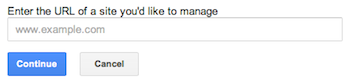
- From the "Verify ownership" page, click on the "Alternate methods" tab and select "HTML tag" as the verification method. (We recommend this method over Google's recommendation because this does not require you to upload a file using a third-pary software. All will be done in Sandvox and the result is the same as any other method.)
- Select the text that appears in the box below, and copy to your clipboard.
- Open your site in Sandvox.
- Open the Document Inspector and click the "Configure..." button under Google Tools.
-
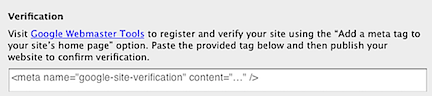
Paste the text that Google had provided into the box in the Inspector.
- Publish the site.
- Click the "Verify" button back on Google's webpage.
Sitemap Activation
Google Sitemaps helps Google better understand how to search your site and increases the chances that a page within your site might be found by someone searching Google. (Note that this is entirely unrelated to Sandvox's Site Map object, and remember that this is a matter of enhancing visibility, not in any way a guarantee.)
To use Google Sitemap:
- Create an account with, and then sign into Google webmaster tools.
- Add your site if you haven't already done so by clicking "Add a site…" and verifying your site (as discussed above). If your site is already listed, click on your website from the list to go do that website's dashboard.
- From the Google Webmaster Tools Dashboard for your site, click "Site Configuration" and then "Sitemaps."
- On Google's Sitemap page, click the "Submit a Sitemap" button. This will pop up an entry field.
- Back in Sandvox, open your website.
- Click the "Configure..." button under Google Tools.
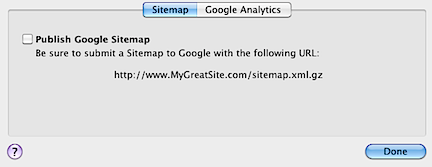
- Check the "Publish Google Sitemap" box.
- Publish your site.
-
Copy the part of the URL after your domain:
-
Paste that URL fragment (usually it is just 'sitemap.xml.gz') into the box on Google's webpage so that the full URL matches the URL in Sandvox.

Make sure that the text field does not duplicate the first part of your URL, since Google already has that part.
- Click the "Submit Sitemap" button next to the text field.
Once you have set up Google Sitemaps on your website, Sandvox will automatically notify Google that your site has been updated each time you publish.
Analytics
Google Analytics allows you to analyze and better understand the traffic visiting your site.
To use Google Analytics with your site:
- Open the site in Sandvox.
- Open the Document Inspector.
- Click the "Configure..." button under Google Tools.
- Log into Google Analytics.
- Sign up your site for Google Analytics.
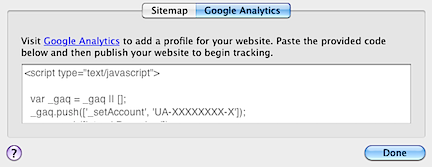
- When you reach the "Add Tracking" stage of the signup procedure, copy the code Google gives you. (If you already have an analytics account set up, you can find the code by clicking on the "Check Status" link from the Profile Settings page for your website.)
-
Paste this entire block into Sandvox. The code should look something like the gray placeholder text in Sandvox:
- Publish your site.
Note: either the New Tracking Code (ga.js) or the Legacy Tracking Code (urchin.js) technique will work. If you have been using the legacy code, we recommend changing this to the new code at your convenience, and then re-publishing your entire site.
Keywords: google, googling, search, searching, searches, searched, engine, engines, web, master, webmaster, tool, tools, verify, verifying, verified, site, sites, analytics, analyze, analyzing, traffic, people, visitor, visitors, sitemap, site, map, activate, activation, maps, sitemaps, site-map, site-maps, analtics
